Best Task Managers for Busy Professionals (2026)
A practical guide to choosing the best task managers for busy professionals in 2026, with clear picks, setup steps, and common mistakes to avoid.
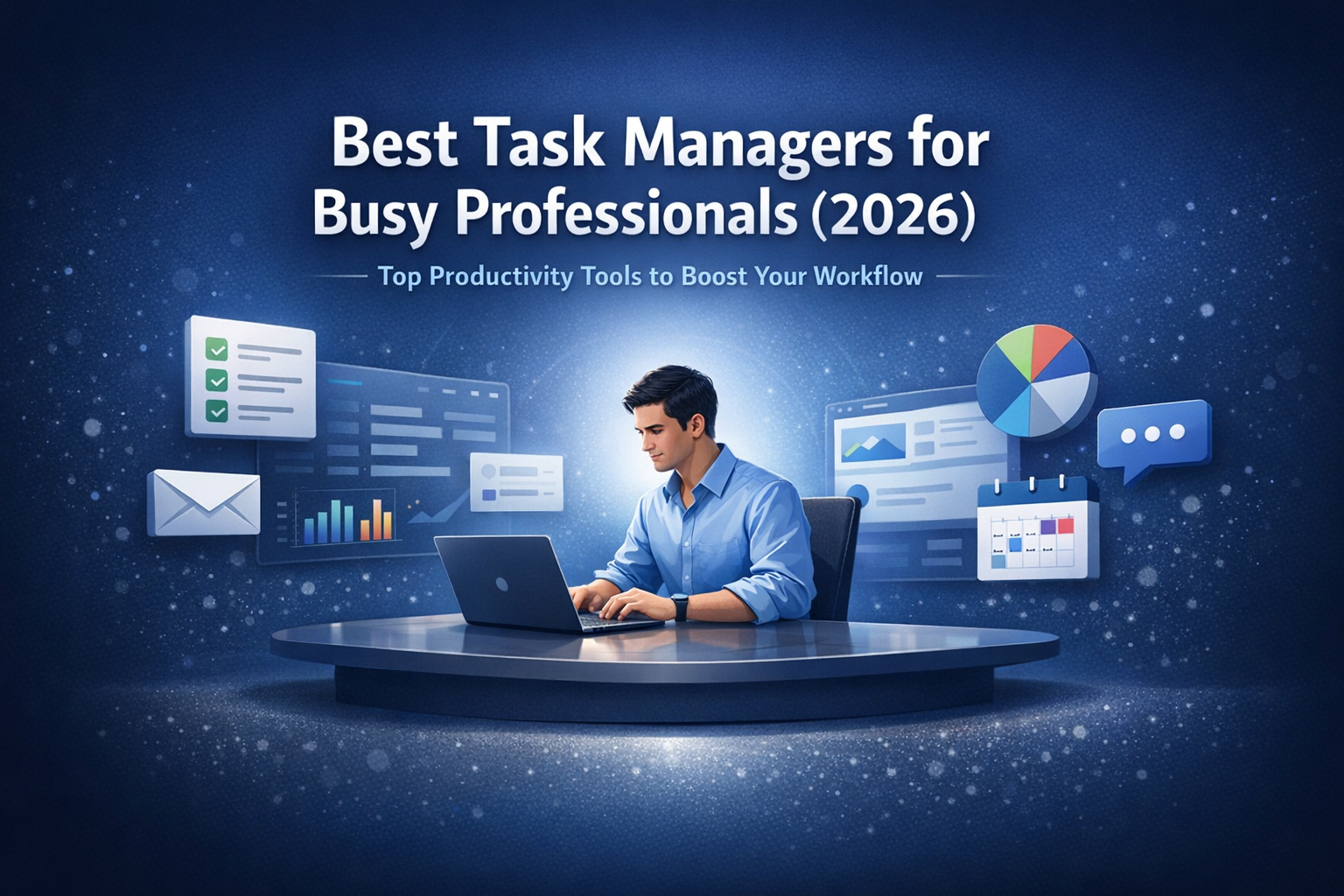
Busy schedules punish messy systems. The right task-management tool reduces stress by making priorities obvious and follow-through automatic. This guide breaks down the best task managers for busy professionals (2026) and tells you exactly who each one is for.
TL;DR
- Choose Todoist if you want fast capture, clean lists, and a simple daily workflow that scales.
- Choose TickTick if you want tasks plus calendar views and built-in habit/time features in one app.
- Choose Microsoft To Do if you live in Microsoft 365 and want a lightweight, dependable personal task list.
- Choose Asana if you coordinate work across people and need structured projects without heavy admin.
- Choose Trello if you think in boards and want a visual workflow that stays easy to maintain.
Best task managers for busy professionals: quick picks by workflow
If you need speed and minimal friction: Todoist
Pick Todoist when your biggest problem is keeping up with incoming tasks. It’s built for quick entry and quick triage.
What it’s best at:
- Fast capture (keyboard shortcuts, mobile quick add)
- Simple prioritization (labels, filters, priorities)
- A consistent daily list you’ll actually use
Who should skip it:
- If you need a full project management workspace with heavy collaboration and reporting.
If you want “tasks + calendar feel” in one place: TickTick
Pick TickTick when you want your tasks to behave like a schedule. It’s strong for planning your day, not just listing work.
What it’s best at:
- Calendar-style views and time planning
- Personal productivity features (habits, focus/time tools)
- One app for both planning and execution
Who should skip it:
- If you only want a pure work task list with no extra features.
If you’re all-in on Microsoft 365: Microsoft To Do
Pick Microsoft To Do when you want a straightforward, reliable task manager and you already use Microsoft tools daily.
What it’s best at:
- Clean “My Day” planning
- Simple lists that don’t turn into a second job
- Best fit for Microsoft-centric teams and individuals
Who should skip it:
- If you need advanced automation, complex views, or deep project structure.
If you manage work across people: Asana
Pick Asana when tasks are shared, deadlines move, and you need clarity across a team. It’s built for coordination.
What it’s best at:
- Assignments, due dates, and ownership clarity
- Project structure (sections, timelines depending on plan)
- Keeping work visible without long status meetings
Who should skip it:
- If you only need personal tasks and don’t want “project overhead.”
If you want a simple visual board: Trello
Pick Trello when you want to see work moving from left to right. It’s easy to maintain and easy to explain to others.
What it’s best at:
- Kanban-style boards for personal or small-team workflows
- Simple status tracking (To do / Doing / Done)
- Quick setup with minimal training
Who should skip it:
- If you need complex dependencies and multi-level planning.
How to choose fast (without overthinking)
Use this decision filter
- Personal tasks only, minimal setup
- Start with Todoist or Microsoft To Do.
- Personal tasks with day planning and a calendar-like view
- Start with TickTick.
- Work tasks across a team
- Start with Asana.
- You want visual workflow first
- Start with Trello.
What matters most for busy professionals
- Capture speed: If adding tasks is slow, you stop using the tool.
- Daily clarity: You need a short list you can execute, not a giant backlog.
- Low-maintenance structure: Too many tags, boards, or projects becomes avoidance.
- Cross-device reliability: Desktop + mobile needs to feel seamless.
Setup that actually sticks (simple system rules)
The “3-layer” structure you should use
- Inbox
- Everything goes here first. No sorting while you’re busy.
- Today
- The tasks you commit to finishing today. Keep it tight.
- Next
- Real upcoming tasks. Not “someday.” If it’s vague, it’s not a task.
The only recurring review you need
- Daily (5 minutes): Pick Today. Clear obvious trash. Move 1–3 items to Next if needed.
- Weekly (15 minutes): Clean the backlog. Confirm deadlines. Remove duplicates.
Step-by-step
-
Pick one tool from the TL;DR list.
- Don’t trial five apps at once.
-
Create three lists/projects: Inbox, Today, Next.
- Keep names exactly like this to avoid confusion.
-
Turn on notifications only for due tasks.
- Disable noisy reminders that train you to ignore alerts.
-
Add tasks using a consistent format.
- Verb first. Example: “Send Q2 budget update to Alex.”
-
Set a daily planning time.
- Same time each day. 5 minutes. Put it on your calendar.
-
Do a weekly reset.
- Archive old projects. Delete tasks you won’t do. Rewrite unclear items.
Common mistakes
- Using your task manager as a notes app
- Fix: Keep tasks as actions. Store reference info in the task description only if it helps execution.
- Keeping 40+ tasks in “Today”
- Fix: Cap Today at 5–10 items. Move the rest to Next. Your list should be executable.
- Creating too many categories/tags
- Fix: Start with none or very few. Add structure only when you repeatedly feel a specific pain.
- Setting deadlines for everything
- Fix: Use due dates only when timing matters. Otherwise, prioritize with Today/Next.
- Never reviewing the backlog
- Fix: Weekly reset. Delete or defer aggressively. A task manager is not a guilt museum.
FAQ
Which task manager is best for busy professionals in 2026?
Todoist is the safest default for most busy professionals who need fast capture and a clean daily workflow. Choose TickTick if day-planning and calendar views are a priority. Choose Asana if you manage tasks with a team.
Should I use one task manager for work and personal?
Yes, if you want fewer moving parts and you can keep work projects organized. If your workplace requires a specific tool (like Asana), keep personal tasks in one personal tool and create a single “Work” list that only holds your personal action items tied to work.
What’s the best approach for inbox zero in task management?
Use one Inbox. Capture everything quickly. Then process it once per day: do it, schedule it, move it to Next, or delete it.
Are recurring tasks a good idea?
Yes, for routines you truly want. Keep recurring tasks minimal. If you start ignoring them, remove or rewrite them until they’re realistic.
Takeaway
Pick a tool that matches your workflow, then keep the system simple: Inbox, Today, Next, plus a daily and weekly review. Busy professionals don’t need more features. They need clarity and follow-through.